


How to Design an Earthquake Proof Building in SketchUp

Simple earthquake proof building design. Is it even a thing? Yes, it can be a simple task to create a design for an earthquake-proof building, as long as you have the right tools… and in this case the perfect tool is SketchUp.  If you’re researching earthquake-proof-building-design, read on. This article dives into what are the design features of an earthquake proof building and reveals which building design will best withstand an earthquake. By the end you’ll understand how earthquakes affect buildings, know ways to make a structure earthquake-proof, which materials to use, and more.

How earthquakes impact buildings?

Earthquakes can be extremely violent and catastrophically destructive. Even when they measure fairly low on the Richter Scale they can cause serious structural damage, simply by moving and shaking the solid ground beneath buildings, something called ‘generation of inertia forces’ and a big risk for building designers to factor in. The quake causes the ground to shake, moving the base of the building while the roof stays put. When the roof stays in its original position like this, it’s called inertia.

Because the walls and columns are attached to it, the roof is dragged around along with the building’s base. As you can imagine the stresses and strains created can easily bring an unprepared structure down. Inertia forces cause shearing stresses, which leads to structures deforming. The ground shakes, the base of the building moves, the roof moves in a different way, and the difference makes internal forces in columns that bring the column back to its original position.

There’s also the damage caused by horizontal and vertical shaking. While structures are designed to withstand vertical loads, earthquakes shake the ground in three directions. Vertical loads add or take away from existing loads. Horizontal shaking creates inertia along with lateral displacement, crucial to the structure’s strength. No wonder quakes create such powerful structural stresses that buildings collapse or are quickly damaged beyond repair.

How to make a building earthquake proof

First in our guide to simple earthquake proof building design, here’s a broad-brush look at how to make a place safe. Earthquake-proof buildings are carefully designed to withstand the destructive forces unleashed when the earth moves. So what are the design features of an earthquake proof building? Whatever the circumstance, they tend to focus on five key solutions.

An appropriate, flexible foundation provides strength and durability exactly where it’s needed, at the point where the building and the earth meet. Seismic dampers reduce the impact of shaking. Thanks to them a design will be able to handle severe input energy and slash harmful deflections, forces and accelerations. Seismic dampers come in a variety of types: viscous dampers, friction dampers, yielding dampers, magnetic dampers, and tuned mass dampers.

Shielding structures from vibrations keeps the elements of a building where they belong, more able to stay put simply because they vibrate less. Structural reinforcement adds core strength to the whole thing. And using adequately ductile materials means the structure can flex and bend safely rather than crack and break. Let’s take a detailed look at these in action.

Creating a Flexible Foundation

What are the design features of an earthquake proof building? Flexibility means a lot. One of the simplest ways to mitigate the impact of earth movements is to construct buildings on top of flexible pads. These cleverly isolate the foundation from the earth beneath, making them a key aspect of simple earthquake proof building design. This is called base isolation, done by constructing the building on top of flexible pads made of steel, rubber and lead. If an earthquake strikes it’s the isolators that vibrate, leaving the building stable.

This alone makes a big difference, which is why it’s widely used in places where there’s a high risk of earthquakes. A good example is the 750 mile-long San Andreas Fault in California, which marks the tectonic boundary between the Pacific Plate and the North American Plate.

It’s good to know the SketchUp 3D warehouse includes useful pre-made examples of anti-earthquake building foundations, ready for you to download and use as your basis and created to save you time. Take a look at this one, for example, which clearly reveals how the flexible foundation pads do their magic.

Counter Forces with Damping

Which building design will best withstand an earthquake? It’s also about something called damping. Earthquake resistant buildings include features designed to absorb the dramatic shocks from a quake and render them harmless. They’re called seismic dampers and they suck up the destructive energy so the building doesn’t have to.


There’s a relatively new way to do this using the miracle material graphene, a single layer of carbon atoms with remarkable properties. Graphene is the strongest material in the world, with a strength of 42 N/m and an intrinsic strength of 130 gigapascals. It’s two hundred times stronger than the toughest steel and is also unusually elastic. No matter what the stresses and strains are, graphene stays the same. Adding a layer of graphene on top of a natural rubber pad works wonders to absorb the shockwaves.


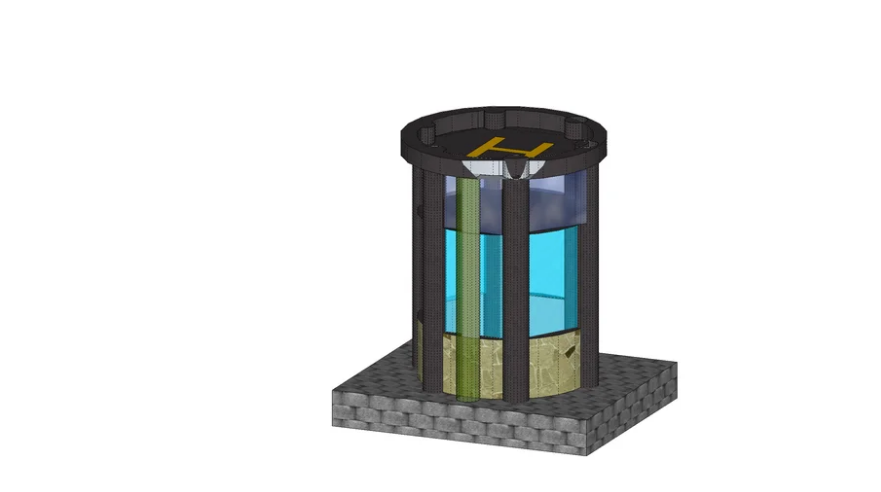
There are useful and inspiring 3D models of buildings including seismic dampers in the SketchUp 3D warehouse, ready for you to use and make your own. Have a look at how the dampers work in this seismic tower design, for example.

Shield Buildings from Vibrations

Scientists are busy exploring various ways to shield buildings from earthquake vibrations by diverting the energy elsewhere. One way they’ve achieved it is using 100 concentric plastic and concrete rings buried at least a metre below the building’s foundation. The idea is that the rings work to absorb the vibrations, which die down significantly before they reach the foundation and the building above it.

The idea comes from the amazing ‘invisibility cloaks’ designed to hide objects by bending light waves around them, something used to hide fighter planes. Physicists from the UK and France found they could harness the same principles to hide an object from the destructive waves made by an earthquake. It’s possible to shield a building so an incoming earthquake wave acts like the building isn’t there, a lot like water flowing around a rock in a river.

It works because the wave pattern generated by an earthquake, like water, can bend smoothly around the building, effectively making it invisible to the wave and redirecting vibrations around it. The rings we mentioned can even be tuned to different wavelengths to cope with the differing wavelengths created by a quake.

Structural Reinforcement

Quake-proof structural elements are also a big deal, involving shear walls, diaphragms, and moment-resisting frames.

Shear walls are designed so they help a building keep its shape when a quake is moving it around, usually supported by diagonal cross braces made of steel. You can imagine how a structure that keeps its shape in the first place is less likely to collapse.

A diaphragm is basically a horizontal structural element like a floor or roof, specially designed to transmit lateral loads to the building’s vertical resisting elements. Earthquake-resistant buildings have these elements on their own decks, strengthened horizontally so they share the violent force loads and make them less destructive.

Moment-resisting frames are structures placed among a building’s joints. They let columns and beams flex and bend, rather than break because they’re stiff and resistant to moving. Again there are some cool examples to use, ready made, at the SketchUp 3D Warehouse, for example this shear wall design, and this floor and ceiling diaphragm. You’ll also find this pre-made design for an earthquake proof house interesting.

Ductile, Earthquake-Resistant Materials

Next, the materials. Obviously some materials are better at resisting damage from quakes than others so it is really important to choose the right building materials for your earthquake-resistant design. Ductility is the feature you’re looking for, since materials with high ductility absorb large amounts of energy without breaking.

Structural steel is one of the most ductile materials of all, which is why it’s so critical to modern buildings in earthquake zones. Specially-engineered, fibre-reinforced concrete has similar properties. Interestingly, wood is also a good material for resisting earthquakes. As you can imagine there are plenty of useful pre-designed structural components in steel and wood available from the SketchUp 3D Warehouse. Take a look at this steel joist girder, and this wooden flooring frame.

Now you know the basics around simple earthquake proof building design, designing a building or other structure to resist earthquake damage. What will you design first? You might want to check out the  enormous collection of SketchUp tutorials, and even test-drive the Pro version of the software for yourself, free for 7 days.

*Please note that this blog post is to act purely as a guide, no safety professionals were consulted during the creation of this guide – always consult with an expert before going ahead with projects of this nature*

Tips for Browsing and Downloading SketchUp Materials

SketchUp materials deliver magic to your designs. Without materials you’ve got something fairly interesting and informative. With them your work is inspirational. And it’s so quick and easy to use materials for SketchUp to bring designs into vivid, realistic life. This guide looks into everything you need to know about downloading SketchUp materials such as marvels like SketchUp materials stone choices – including everything from rockery stone to building stone – along with wood materials, SketchUp materials collection insights and more. Read on to find out how to enhance your drawings and inspire your stakeholders. 

What are Materials in SketchUp?

Let’s tackle the basics first. What are SketchUp Materials? They’re essentially digital paints with a colour and an optional texture, all defined within an image file. You might want to use a blue roofing material, for example, with a realistic-looking texture that simulates metal. The SketchUp materials collection is enormous, giving you everything you need to create designs that don’t just look great, they look real enough to convince clients, colleagues and everyone else. By making your drawings as realistic and accurate as possible, you make everyone’s life easier, including your own. 

Think stunning coloured roofing tiles created in a few clicks to enhance unusual building designs, imagine a huge variety of wood materials for everything from furniture to garden decks and architectural projects. The SketchUp materials stone collection is equally impressive, a host of beautiful finishes to bring your drawings to the next level. There are grass and landscape material, plus many more materials for SketchUp, that are all free to use.

Browsing and Downloading Materials for SketchUp

So where do you find all this amazing stuff? Materials for SketchUp can be found and downloaded from the 3D warehouse, a huge collection of free resources for users to dive into. The only limit is your imagination. Why not have a look for yourself? All you do is enter the search query ‘materials’ into the search box at the top of the page to see what’s there. The popular 2016 stone colour collection, for example, contains 34 different materials covering all sorts of stone types, from golden sandstones to pale and dark grey slate-look materials and pure white marble.

There are countless brilliant wood materials textures to tap into as well. There’s wood with and without a strong visible grain, in every shade and colour, whether it’s decking for your garden design or wood for kitchen cabinets and work surfaces. Marble wall pattern material helps designers create drawings of luxurious interiors and exteriors, and there’s a host of gorgeous landscape related materials to enjoy. Imagine a collection of materials for making hyper-real trees, shrubs, site furniture and more. Think travertine steps and black slate tiling, and loads of wonderful tile materials including mosaic tiling and subway tiling, marble tiles and patterned ceramic tiling.    

How do you download all this fabulousness? SketchUp materials download is really easy, the same as everything else in SketchUp. Once you’ve found the material you want to download, simply click the Download button. If you like you can download just the material itself and avoid importing the whole component into SketchUp. 

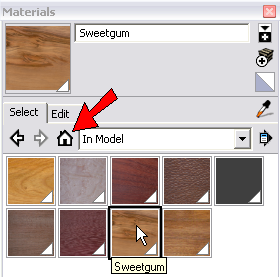
Let’s use this collection of wood materials and textures as an example. To download individual materials from this collection, from the model info (RHS) – click ‘Materials’. This’ll present you with a list of the materials used in the particular model. Each has a name and dimensions, along with the file size. Just find the material you want then click the ‘Download’ button. That’s it. 

How to Import New Materials in SketchUp

So you’ve downloaded the materials that inspire you, and it was as easy as pie. Now you need to import the material files into SketchUp to use them, and it’s equally simple. Maybe you want to use wood materials, SketchUp collections of every kind of wood. Here’s what to do: 


  • Select File > Import
  • Find the Import dialogue box
  • Navigate to the material image you’ve downloaded
  • Select it
  • Select ‘Use As Texture’
  • Click Import.


This very simple process makes the imported materials available in SketchUp for you to play with in any way you want. As you can imagine, using pre-created materials saves users a huge amount of time and effort. So now there’s no need to go to the trouble, time and expense of making a travertine floor tile of your own or spend ages making convincing looking grass when there’s plenty of ready made options that are right at your fingertips. 

How to Apply Materials in SketchUp

Next, let’s look at how to actually apply the materials for SketchUp you’ve chosen. Again, it’s a super-easy process that makes designing and drawing such a pleasure, smoother and faster as well as more efficient and a whole lot more fun. Experimenting with various materials and textures is one of the biggest joys of using the software, driving instant design and boosting your creativity. 


Here’s how to apply materials in SketchUp on a Windows PC: 


  • Find the paint bucket tool in the Getting Started, Large Tool Set, Principal toolbar, or in the menu bar under tools-paint bucket
  • Select the tool
  • Open the materials panel
  • Choose a collection of materials
  • Click on the material you want to use


It’s just as easy and fun on a Mac: 


  • Find the paint bucket tool in the Large Tool Set toolbar, the tool palette, or in tools-paint bucket
  • Select the paint bucket and a colours panel appears
  • Choose a colour using one of four colour picker tabs or use the materials collections
  • Choose the materials collection you want to use
  • Click the particular material you want to apply to your model


Imagine being able to apply an attractive basalt stone surface to your kitchen design in no time. If that doesn’t give you the effect you have in mind, it’s an easy matter to change it for, say, a pale limestone surface or something vivid and colourful in little glass mosaic tiles. It’s so quick and easy you can do it while a client observes, letting them choose the finish they prefer while you work. And if it turns out you love creating materials of your own, you can add them to the 3D warehouse for others to use and enjoy. It’s a community thing, adding more materials for SketchUp to keep the inspiration going. 


If you haven’t tried it yet, you might want to explore a collection of marvellous SketchUp tutorials, designed to make your journey of discovery even more exciting and speedy. Then make your way to SketchUp Pro to explore the magic of the software in detail. You’re going to love it.

Tips for Agile SketchUp Modelling

If you’ve ever heard of agile modelling, you’ll already be aware of the advantages. If not, you’re in for a treat. Agile design principles will help you, as a talented designer, maximise the effectiveness and efficiency of your workload. Agility will help you please your clients and delight every kind of stakeholder. Saving time means saving money, which is always good news for any business. And it’s also an excellent framework for minimising mistakes, organising yourself and your projects, and keeping everything running smoothly. Let’s take a good look at the agile design process in a SketchUp world. By the end of this article you’ll understand what it is, why it matters, how to do it for yourself, and the most important best practices for designing in an agile way.

What is Agile Design?

It’s always best to begin with the basics. So what is agile design? In a nutshell, agile modelling principles give you a useful iterative framework for you to develop your designs faster and better. 

In our world the word ‘iterative’ means repeating a sequence of instructions until you reach a predefined end result. Every time you complete the steps of a sequence in a given order, you’ve completed an iteration. When you carry out a series of trial-and-error style cycles, adjusting a design according to what you learned during the previous iteration, the creative process is formalised without affecting your creativity. You refine your work in a logical way through repetition, moving continuously towards your goal. It’s a great way to work for everyone involved, from designer to client. 

The agile design process is highly collaborative. It creates a fast-paced and exciting working environment where big tasks are broken down into manageable chunks, each dealt with or ‘actioned’ in short time periods called sprints. A sprint can last days or weeks. 

As you can imagine, agile methodology’s iterative framework is an excellent fit with software development, and just as good for the kind of work SketchUp users do. The business benefits are well worth having: fast feedback, appropriate customer involvement, easy change management, and great team motivation.

Agile Design Process and Principles

Next, let’s explore the agile design process and the associated agile design principles. The agile design process involves a series of logical phases:

  • Understand
  • Research
  • Sketch
  • Design
  • Prototype
  • Test
  • Refine


The idea at the core of agile working is that you forget about perfection, and it’s actually liberating. In agile methodology it’s more important to make progress than have endless lengthy discussions. The emphasis is on building, testing and iterating solutions instead of getting mired in endless talk. 

And how about agile design principles? While many of the ideas behind agile modelling specifically relate to software and website development, it’s easy to see how they apply perfectly to the work our users do. 

For a start you model with a purpose. You’re not confused about the project and your role in it. You have a specific purpose, which helps drive you in the right direction. Embracing change is a key principle, since the goals and requirements will change as the project evolves. Every aspect of the project might change over time, and that’s fine. Incremental change is usually easier to handle than big, sudden changes, and that’s an agile way to work. 

When you assume the best solution will almost always be the simplest, you’re engaging in agile thinking. Agile designers keep their modelling simple so it’s easier to re-think future requirements without problems. And because your goals are small and incremental, the next goal is always front-of-mind. Quality work sits at the heart of all this, which means you meet people’s expectations more efficiently. There’s no rushed work. And the fast feedback agile demands is also a big advantage too, keeping your project firmly on the rails and heading in the right direction. 

Agile working involved just enough documentation rather than drowning in too much paperwork or struggling to understand too little of it. You keep stakeholders in the loop, with incremental decisions to make along the way. Every piece of documentation is worth having. 

Tips for Agile Design and Modelling in SketchUp

SketchUp supports the agile design process beautifully. It enables collaboration perfectly, one of the most important basics of the agile method. SketchUp Viewer’s collaboration features let groups of people experience SketchUp projects using immersive virtual and augmented reality devices. Members of the group can join in with collaboration sessions via a local Wi-Fi network or do it remotely over the web. When collaborating in a room, the owner of the room is the presenter, the rest are attendees, not unlike the software so many of us used to stay in touch during the pandemic. You even have your own avatar to show who you are, and where you are in the virtual project related to everyone else. It isn’t just useful, it’s great fun. 


SketchUp also supports the iteration that sits at the heart of agile design. The Purge Unused command, for example, gets rid of all the unwanted Components, Styles, Layers, and Materials you’ve deleted. Importing Components by downloading them from the 3D warehouse speeds up your workflow no end, feeding into effective iteration. Agile experts recommend considerate component selection, where you pick the smallest file size and edge count for design efficiency. Turning off ‘Shadows’ and ‘Fog’ makes your modelling more efficient and the process less sluggish. When you save your interim working scenes without shadows or fog, you maximise your efficiency. As long as you always have the latest updated version of SketchUp, agile working will be yours for the taking. 


If you’d like to delve deeper, there’s lots of information about maximising your efficiency here, in an article about SketchUp best practices and applied principles


Agile Modelling Best Practices

You’ll want to know about the best practices for agile modelling and product design. Here goes. First, it’s about creating the right kind of culture where agile working can thrive and make the best impact. This means the opposite of centralised work. You need to think about a way of working that’s de-centralised, cross-departmental and self-organising, driving a culture that majors on being proactive and collaborative first and foremost. 


You’ll need to establish a great strategy to unite everyone involved, an umbrella under which you all work, feeding directly into all the relevant KPIs and goals. And building focused user stories is tremendously helpful. It lets you take an essential customer perspective on the design’s context, function, and the issue it resolves. This complements your formal representation of the end-user journey from discovery to using the design. 


Honest and open communications are key, especially important for successful team building. Sharing knowledge in the right way means delays are minimised and communication problems avoided. If your teams are remote it’s even more important for you all to be on the same page, all able to make any issues clear, talk about problems, and deal with potential bottlenecks, all feeding into the right stakeholders. 


Working in sprints means working more like a 100m sprinter than a marathon runner. Nothing drags on longer than it needs to, you release your deliverables frequently in small chunks, and fix things as they occur. And this means you always deliver good value, every step of the way.  


Agile design principles and the agile workflows you create as a result of them mean the clients and users determine a project’s success. Because agile design is centred around the product and its intended benefits to the client, they’re placed at the centre of everything – which is exactly where they belong. 


Now you understand the agile design process, agile design principles and know why agile modelling is the thing to aim for. Take a look at SketchUp’s excellent collection of essential tutorials and test-drive SketchUp Pro for the full story. It’s inspiring!  

How to Design a Small Garden

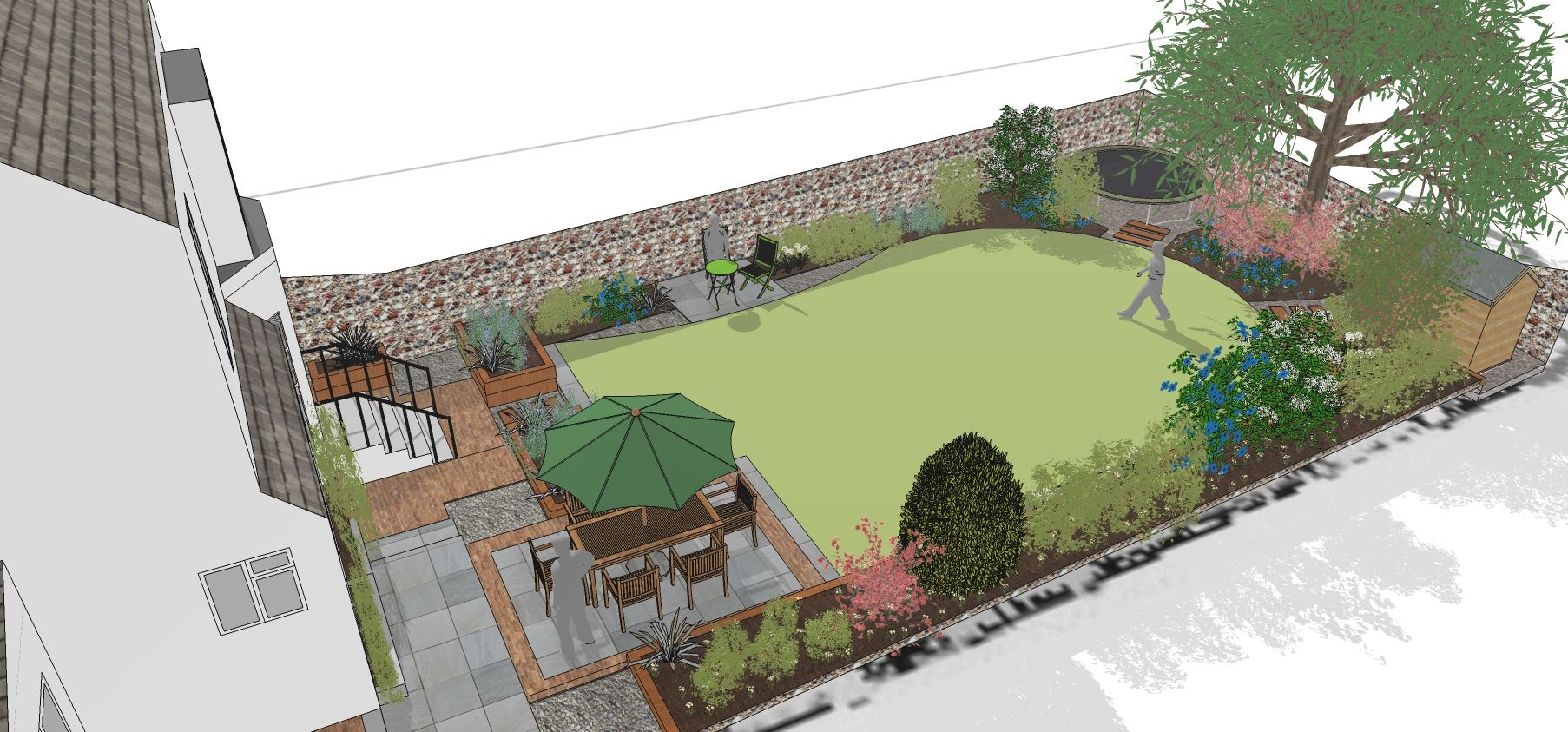
How can you design a small garden layout? And, perhaps more importantly, how can you design a small garden for free? The answer is, you can design a small garden space easily and quickly, using a fun tool you’ll fall in love with. SketchUp is a wonderful way to make good-looking, accurate garden designs in no time, and it’s easy to learn. If you have a limited outdoor space of your own you want to transform into something magical, read on. This article reveals how you can create something beautiful and practical, a garden design achieved quickly, with flair and imagination. By the end of it you’ll be inspired to open up SketchUp and give it a go. Here’s how to design a small garden in SketchUp.

Designing Gardens in SketchUp

SketchUp is great for designing gardens of all sizes, and it’s perfectly possible to do it without paying a penny. The software is available in a free version and it’s really good for garden and landscape design. Even if you’ve never used SketchUp before, you’ll enjoy the learning process. It really is fun. 


There’s a wealth of great tutorials to help you get where you want even faster, also free, plus access to the famous 3D Warehouse, home to masses of free pre-made designs for everything from building materials to trees. Garden furniture, plants, lawn materials, stone materials, wood materials, they’re all there for you to download easily and use in your design for a small garden. Plus water features and ponds, exterior lighting, patios, hedging, you name it. All you do is drag the pre-designed 3D models you want into SketchUp. 


Basically, in SketchUp, design takes place in an exciting 3D space. The results are brilliantly realistic. With such a short learning curve to climb you’ll be creating fantastic 3D designs in no time. Even if you’ve never used a tool like this before.


 The intuitive nature of SketchUp for garden design removes the barrier between creative thought and creative expression when you’re learning how to design a small garden layout. Think it, draw it. Everything is so simple to use, you’ll soon be designing almost as fast as you think. It feels wonderful to bring ideas to life so fast.    


SketchUp lets you render 3D garden models into stunning photo realistic images so convincing they show you exactly what the finished garden will look like, in proportion, 100% accurately. As long as you’ve given the right measurements in the first place, your design will look true-to-life. And that makes it so much easier to make decisions. 


Add all the many useful and inspiring extensions and plugins that support every aspect of 3D design, and give you handy short-cuts, and you can see why SketchUp is so popular. The rendering plugins alone will blow your mind. 


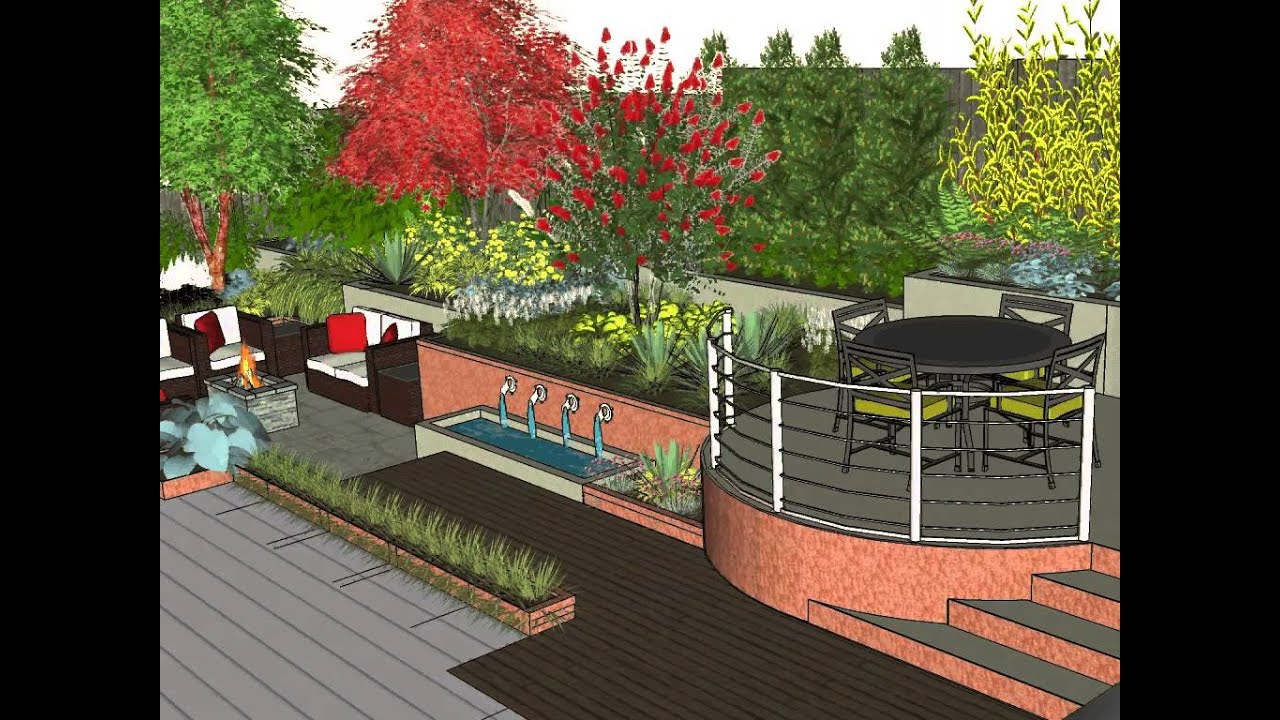
Back to the 3D Warehouse… which also contains examples of pre-made small garden designs created in SketchUp by users. They’re great for inspiration and you never know, you might love the programme so much you end up designing show-gardens of your own for the community. Search the 3D warehouse for ‘small garden design’ to find some great examples like this one, and this.  


You can learn a lot by importing a design from 3D Warehouse and exploring it in SketchUp, a good way to get a head start. One of them might even form the basis of your own garden design for a small space. They’re really easy to adapt and customise. This is how to design a small garden for free without any hassle.  


How to Design a Small Garden in SketchUp

Here’s some step by step instructions on how to design a small garden in SketchUp, showing how easy it makes your life. Never designed a garden in your life? You’ll be fine. Never used garden design software? Not a problem. Here’s how to design a small garden layout in a few steps. It really is this easy to use: 


  • Make sure you’ve chosen the right units – choose feet or centimetres 

  • Use the SketchUp drawing tools – the pencil, rectangle, arc and more – to draft the overall shape of the small garden. You’ll be surprised how well you get on

  • Draw in your garden paths, patio, borders, fences, walls and other solid structures 

  • Set the dimensions to match the your garden layout – this makes for an accurate design that works in real life 

  • Apply ‘materials’ to the garden surfaces like patios and paths, lawns and gravelled areas

  • Find cool premade SketchUp models from the 3D warehouse to use in the garden design, everything from fountains and trees to individual plants, lawn textures to ponds and garden furniture. Some of the furniture is real, you can buy it in the shops if you like the way it looks in your design

  • Import the models from the 3D warehouse and scale them to match your garden dimensions – another easy job 

  • Move the imported 3D elements around until they’re in the positions you want – do they fit, are they too big or small? If so, find more in the Warehouse to suit your small garden design. It’s almost as fun as actually shopping


There’s more to think about. How does the light fall into the space in real life in summer and winter, and at different times of day? Knowing where the sunshine and shade fall will help you decide where to put the garden furniture, outdoor heater, patio, flowers and whatever else.  Once you render the finished design with a lighting plug-in, you’ll see exactly how the sunlight affects the space. 


Then there’s privacy – you can design it into the garden if the space is overlooked.  Maximising the patio space becomes easy. Move things around with ease and choose the best patio size and position. Adding height to the garden helps create interest and visual enjoyment. Take a bare rectangular garden, interrupt it in any number of ways and you instantly get a bigger-feeling space, no matter how small it is, like putting plants in the centre to make the views more interesting than planting round the edges. 


Grow plants up walls and fences to soften the lines and provide places for wildlife. Add a simple pond and watch the wildlife arrive like magic. Use digital paint to test the colour of the garden fencing. Black, deep purple, deep red, they’ll all make the space look bigger. Rich colours also showcase planting beautifully, adding instant drama. To draw things in and make the space feel more intimate, paint the fencing or walls a light colour.


Can you see how much fun it’s going to be, and how satisfying, now you know how to design a small garden for free? SketchUp is ideal for experimenting with small garden design ideas fluidly and enjoyably. Happy designing!  


How to Design a Garden Border in SketchUp

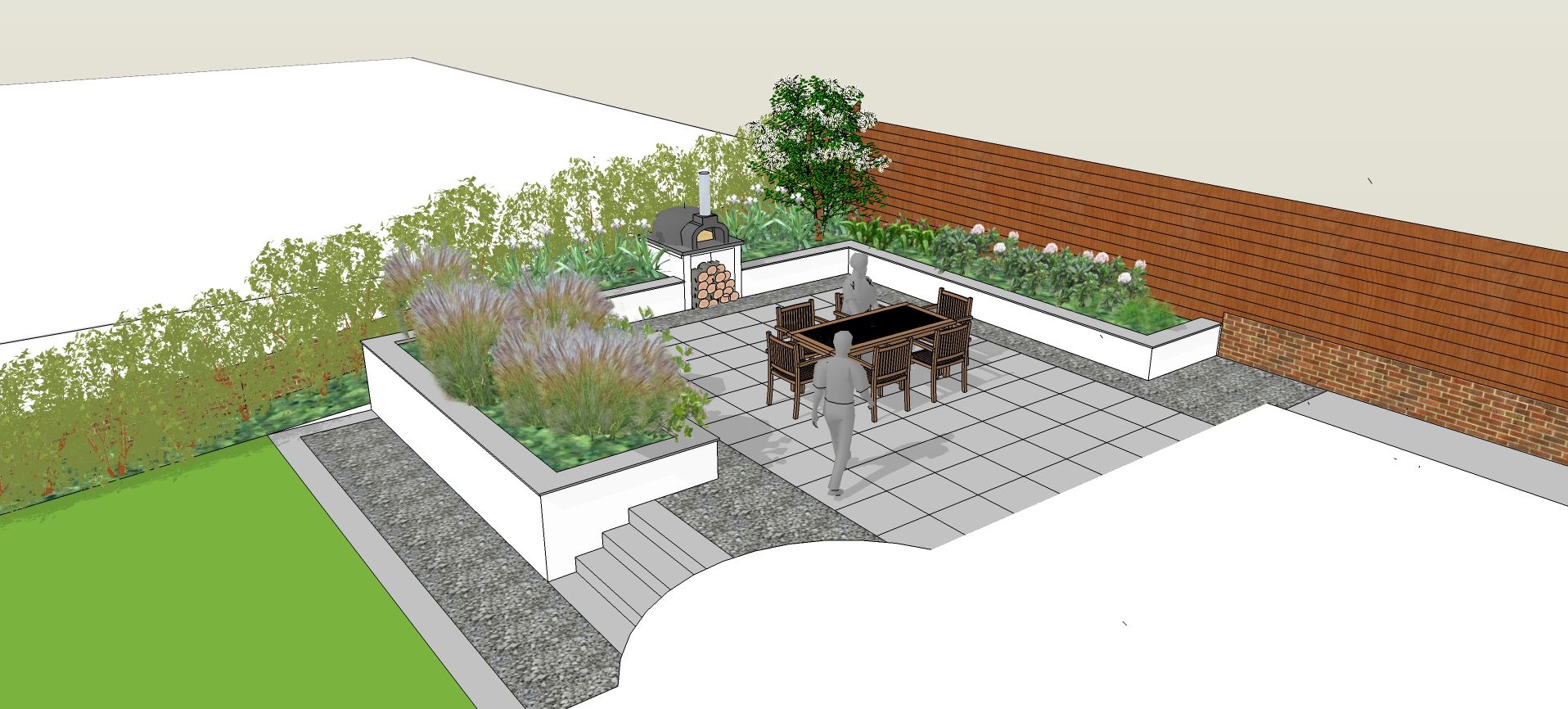
Sketchup is totally brilliant for garden design. The exciting speed you can design at, the sheer variety of resources and the beautiful 2D and 3D results all make it a very popular garden design tool. The output is realistic and accurate, making it easy for you, your clients and any other stakeholders to get a clear picture of what the finished garden’s going to look like. This article explores exactly how to design a garden border, one of the most popular traditional features in garden design that can also be taken to fresh and exciting new places using Sketchup to express your limitless imagination. Read on to find out how to do it with confidence and flair. 

Designing a Garden Border

First, let’s take a look at the most important things to think about when designing a new border for a garden. The soil matters for a start, since it affects which plants will thrive in the border. While you can add nutrients to the soil it’s usually best to stick with plants that enjoy the existing conditions. 

Chalky soil, for example, is well-drained and tends to be dry as a result. Clay soil sits at the other end of the scale, wet and heavy rather than dry and light. Sandy soil comes with its own challenges, as does loamy soil. All this will affect the plants you choose for the border and the way you place them within the area. That’s why borders differ so widely from garden to garden. 

To pin down the best plants for the garden, think about all of the above then think again bearing sustainability in mind, a big tick for today’s garden designers in a climate change world. But plants are only one feature of a garden border. Consider the overall colour scheme. Will you major on subtle greens, from dark to pale to variegated? If you’re planting flowers will you go for a random riot of colour or pick two or three shades to focus on? 

Then there’s the background. You probably won’t find yourself designing a border out of context, so think about the background as well. Is there an existing wall or fence? What height is it? Will you be enhancing the fence or wall with trellis or some other plant support system? Maybe you’ll train espalier fruit trees along the wall behind the border, perhaps you’ll paint the fence a dramatic colour to showcase the planting. Deep, rich colours like aubergine, burgundy and black, for example, make natural greens shine out beautifully.  

If you need to increase, decrease or change the shape of existing borders, SketchUp is a great tool for experimenting with design ideas. 

How to Design a Garden Border in SketchUp

The 3D Warehouse you get free access to with Sketchup is packed with beautiful examples of garden border design in SketchUp, and they’re great for inspiration. Take a look at this one, and this. You can download them, redesign them, move the elements around, change the dimensions, add more features and plants, and more. Because the foundation is already there it’s an easy and exciting process. So how do you design a garden border in SketchUp step by step? Let’s have a look: 

  • First, choose the right units, either feet or centimetres. The results will be very different so don’t get them mixed up! 
  • Use a variety of cool SketchUp drawing tools – the pencil, rectangle, arc and so on – to draft the overall shape of the garden border
  • Find inspiring SketchUp models from the 3D warehouse to incorporate into the garden border design, things like the right kind of shrubs and plants
  • Import existing models from the 3D warehouse then scale them to match the garden layout dimensions
  • Move your imported 3D elements around to create the kind of garden border design you have in mind
  • SketchUp lets you also design the associated garden walls and fences 
  • You can even use light to show where the shadows and the shaded areas they create are – this is particularly handy because once you’ve got an accurate pan of where the sun and shade falls throughout the day and through the seasons, choosing the right plants is so much easier 
  • You can also add in features like sheds, lawns, trees, and other exterior structures into the design easily and quickly, making the end result as accurate, attractive and easy to understand as possible – which makes getting the go-ahead from clients more of a pleasure than a potential pain 
  • Combined, SketchUp and the 3D Warehouse make a brilliant tool for effective garden design whatever the size, shape, and style of the land 

When to Plant Your Garden Border

When thinking about designing your border, consider when to plant. The timings will feed into the garden design, giving your client different vistas and looks through the year. Ideally you’ll want to make sure there’s colour and interest in every month and through every season, so the views are always beautiful. 

Depending on the time of year, different plants and flowers have their own unique needs. If you’re planning to plant in spring or summer most things will grow as soon as they’re in, while planting out in autumn or winter, when the growth slows and stops, they won’t get going until spring. 

If you’re designing a garden for planting outside the growing season you can give your client two designs, one showing your idea in full bloom and leaf, and the other in winter before things have had a chance to grow. Then you can manage their expectations.  

Now you know how to design a garden border in Sketchup. Did you know Sketchup comes with a huge collection of fantastic tutorials for every imaginable purpose, so the learning process is fast and fun? There’s even a free version of Sketchup Pro for you to test drive, giving you the chance to experiment. What kind of garden border will you design first?  

Types of Garden Design to Inspire your next project

So you want to design a garden? How exciting. It’s a wonderful thing to do, designing a natural space for people to relax, enjoy the plants and flowers, and get all the benefits of being out in the fresh air. But what sort of garden will you go for, in what kind of style? The world is your oyster, of course, with countless types of garden styles in landscape design. Thanks to SketchUp you’ll be able to create a design for any kind of garden you like, from traditional to modern, flower-filled to focusing on greenery, something rocky, gravelled or mossy, you name it. This article explores the sheer variety of different types of garden design for you to experiment with. By the end of it you’ll know more about some of the most popular types of garden styles in landscape design, and you’ll have a good idea of the direction you want to take for your own design.  

Different Types of Garden Design

Thanks to the natural materials, the soil, the light, the weather and the human imagination, there’s an infinite number of garden design types and styles to experiment with. Your garden design might reflect the age or period of the house or other building it belongs to, something appropriate and subtle that sits perfectly against the backdrop. A Regency-style garden for a Regency house, for example, or a formal garden for a formal space. 

On the other hand it might be an exciting contrast, something dramatic or surprising that adds a real ‘wow’ factor to the space. It depends on your – or your client’s – taste and desires, what inspires you, and what piques your imagination. Once you’ve sussed out the soil type, the prevailing weather conditions and the light, all of which will affect the planting itself, you’re ready to go. So let’s take a tour of some of the world’s most popular garden styles. 

Traditional Garden Style

One very popular choice in our different types of garden design is the traditional garden style. It has some typical features you’ll want to include to get the look. This is a highly structured style, usually dividing the space into a series of ‘rooms’ bordered by hedges, walls or trellis, each with its own look or function. The vegetables are kept separate from the flowers and shrubs, there’s a lawn, and beautiful herbaceous borders where, ideally, flowers bloom throughout the spring and summer, then late into the autumn. 

Fill the borders with beautiful annuals and perennials. Plant them in swathes for a flowing look or dotted in threes, fives or sevens for a stylish and pleasing finish. This is where carefully planned colour schemes and plant combinations come into their own, along with trees and shrubs, paths and terraces. This garden style is perfect for a focal point, perhaps a pergola or a piece of garden sculpture, and every keen traditional gardener needs a shed or other suitable building to store tools and equipment. 

Cottage Style Garden

A cottage-style garden is informal and flowing, an easygoing, pretty and relaxed style where plants and flowers tumble around each other in a glorious mix. It’s all about the plants and flowers themselves. And it’s a great opportunity to creatively blend different colours, structures and textures. 

Plant fruit and vegetables alongside flowers and shrubs, plant high and low, tall and short, and make the most of all the different greens. Design a secluded spot to sit, work, chill or chat, and create winding paths through the blooms and greenery for people to explore. Because cottage style gardens are by nature small, forget lawns. Maybe think about a hidden courtyard instead, a paved space with a bench and loads of flowers, maybe even a small water feature. 

English Country Garden Style

An English country garden combines elements of both the traditional and formal garden style. You need space for this one because it’s all about gracious wide paths, either gravelled, brick or paved, and deep herbaceous borders like you find in a stately home garden. Add topiary and evergreen shrubs for winter interest, a lawn or several lawns linked by pathways. Include traditional garden furniture, statues, fountains, rose gardens, urns, a sundial, and plenty of trellis to grow climbers up to add to the rich, complex, frothy feel. Rosemoor, north Devon’s RHS garden, is an excellent example.

Coastal Garden Style

A coastal garden comes with exciting challenges of its own. It is rare to get  a hard or long-lasting frost on the coast thanks to the salty air and sea breezes. Salt affects some plants more than others, so choose plants that like the unique conditions, beauties like exotic sea cabbage and lovely lavatera. 

This type of garden is very like a dry garden, also not dissimilar to a Mediterranean garden, being typically very well-drained. Think about adding drought-tolerant plants which also withstand windy conditions. You might find you’re planting directly into gravel, shingle or sand, which keeps things interesting. You might add wooden decking for a seaside look, and let it fade to silvery grey naturally. You can add large feature rocks, and theme the garden furniture and ornaments. Think rope and sea glass, flags and faded chunks of wood as features. Gravels and aggregates in different sizes and colours add more interest and texture. Derek Jarman’s stunning coastal garden at Dungeness in Kent is a great example.

Japanese Garden Style

A Japanese garden is one of the most relaxing spaces you can imagine, unique in the world of garden design. It’s all about tiny details – the beauty of the miniature leaves of the mosses, the curious shapes of bonsai trees, the gorgeous swirly patterns raked into gravel and sand and soil. Plus stunning rocks, placed with great care for the maximum aesthetic impact. Think calm, cool and simple. It’s all about visual balance, about carefully planned features often complemented by empty space.

Instead of several trees or shrubs, a Japanese garden will have just one or two beautifully pruned specimens, and pruning is a very big deal indeed. There’s an interesting use of unusual materials, things like the classic mosses we’ve mentioned, and texture is vitally important in a Japanese garden. Water features are also a big deal, maybe a pond for Koi carp or a large rock with a depression in it where water can naturally gather. Moving water is a popular feature as well – think simple, elegant water features, maybe a single slice of slate with water running down the smooth face. Or simply a big ceramic pot full of water.    

Mediterranean or Dry Garden Style

Mediterranean or dry gardens have defining features of their own. Great drainage is a must here. For Mediterranean and dry-loving plants to thrive. It’s possible to achieve this in a damp space, like they’ve done in RHS Rosemoor’s Mediterranean garden, which thrives despite being a soggy spot in a frost pocket with heavy clay soil. They’ve simply built beds up from ground level rather than digging them down, using very well drained gravelly soil. 

Also called ‘Australian gardens’ or ‘desert gardens’, appropriate planting is at their heart. Choose drought tolerant and drought resistant plants like succulents, cacti and ornamental grasses. Include dry-loving garden perennials and herbs like rosemary, sage, lavender and verbascum. Dry or desert gardens also feature pots and sculptures, paved areas and paved pathways, and seating areas in the sunshine and shade. 

Wildlife Garden Style

The most popular types of garden styles in landscape design of all include the wildlife garden style. It’s all is about ‘messy gardening’, which involves leaving spaces untended for insects, amphibians, birds and more to make homes, breed, and enjoy life. There are some defining features of wildlife gardens but it isn’t actually a garden style, more like a way of gardening. Every garden can be wildlife friendly. Make it ‘no dig’, where instead of digging to uncover precious soil microbes to the light and air – which they don’t like – you simply mulch over the top and leave the goodness to sink in. Instead of cutting back dead plants in autumn and winter, leave them for the wildlife. 

Don’t use any chemicals. Provide food, water and shelter for creatures. Make a pond with a deep end for creatures to stay warm in winter and a shallow end for getting in and out. You’ll be amazed how fast the wildlife arrives. Give it a week after filling the pond and they’ll be there. Plant plenty of pollinator-friendly plants. Let ‘weeds’ grow in as many places as possible, appreciating their subtle natural beauty. Make or buy bug hotels, bat boxes and bird boxes. And leave little piles of dead leaves and twigs, branches and grass for creatures to hide, live and hibernate. If you have room for a compost heap don’t dig it over, let it rot down naturally. Take a look at these inspiring wildlife gardens you can visit.  

Sustainable Garden Style

Different types of garden design can also be sustainable, which is big news thanks to climate change and the wildlife crisis we’re suffering. People want gardens that work in partnership with wildlife, which help mitigate climate change. This style of garden is often more economical, involving using recycled, up-cycled and repurposed materials, reducing the use of natural resources, and making new and exciting features out of old and unwanted items. 

You might pile up some old chunks of wood into a casual sculpture, make a heap of rocks for creatures to shelter in, and plant specimens that flower from early spring to late in the year to keep the wildlife going. 

As a rule there’s less maintenance to do. It involves collecting seeds for the next year, using companion planting to encourage insects and other creatures, protecting food crops with netting, and choosing resilient varieties of plants that will adapt to the weather and changing climate conditions.

Create your own garden style

There’s endless potential for creating something unique to suit the space, your taste or the client’s taste. You might create a series of very different, contrasting ‘rooms’ for a large garden, each leading to the next with surprises every step of the way. You might cram a tiny city garden with exotic jungle plants which will survive thanks to the microclimate. Take London, where you can grow avocado trees or citrus plants from seed with ease, and sometimes they even bear fruit.  

Whatever types of garden styles in landscape design you decide to create, SketchUp will be with you every step of the way, making your job easier, more creative, and more fun. A collection of excellent tutorials helps you achieve magic, and you can test drive SketchUp Pro for free to see what you can achieve. 

How to Use V-Ray for SketchUp: Beginner’s Guide

New to the world of 3D design? One of the first skills you need to know is how to use V-Ray for SketchUp.

Both software complement each other perfectly. On one hand, SketchUp lets you draw in 3D, create 3D models interactively, and develop complex structures. On the other hand, V-Ray is a powerful 3D rendering engine that breathes life into SketchUp models. This includes infusing them with photorealistic material surfaces, lighting, textures, and other dimensions.

Despite all of its incredible features, learning V-Ray for SketchUp can be a bit confusing at first.

To help you get started, we’ve created an overview of how to use V-Ray for SketchUp. We’ll discuss what it is, how to install it in SketchUp and share examples of the many creative ways you can use it to make your 3D creations look exceptional.

What is V-Ray for SketchUp?

V-Ray is a powerful rendering software developed by Chaos Group, a leading provider of professional 3D graphics technologies.

Originally designed as a rendering plugin for 3D modelling software, V-Ray has since become a full suite of tools for creating stunningly realistic images across a number of industries.

V-Ray offers a range of features that make it an ideal choice for SketchUp users. Some of these features include the ability to create accurate lighting, realistic materials, and realistic reflections. On top of all that, it also offers a range of powerful post-processing tools, such as the ability to adjust shadows, textures, and colours.

In addition, V-Ray for SketchUp allows users to render scenes in multiple passes, adding to the outstanding realism and complexity of their renders.

The software is compatible with SketchUp Pro, SketchUp Studio, and SketchUp Viewer, and it’s incredibly easy to install and use.

Compared to similar 3D rendering software, V-Ray for SketchUp offers the following benefits:

  • Intuitive interface: V-Ray’s beginner-friendly facilities, like the “Quick Settings” feature for materials and lighting, make it easy for new users to get up and running quickly.
  • Fast rendering times: Unlike other 3D rendering tools, V-Ray for SketchUp offers quick rendering speeds, which means you can spend less time waiting and more time creating.
  • Interactive render previews: With V-Ray for SketchUp, you can preview your renders in real time and make adjustments as you go.
  • Compatibility with SketchUp: V-Ray is designed to work seamlessly with SketchUp, so you can easily integrate it into your existing 3D workflow.
  • Massive community and online resources: Countless professionals and novices use V-Ray for SketchUp, which means there’s no shortage of tutorials, guides, and resources available for users of all levels. For instance, need special V-Ray materials for your 3D model? A quick search will yield downloadable packs with dozens of realistic textures and materials.

These are just a few of the many benefits that V-Ray for SketchUp has to offer. Next, let’s look at how to install and use the software.

How to Install V-Ray for SketchUp

To install V-Ray for SketchUp, both your computer and SketchUp version must meet V-Ray’s system requirements.

As of December 2022, here’s what you’ll need:

  • RAM: 8GB RAM minimum, but 16GB RAM is recommended for optimal performance
  • Processor: 1st Gen Intel® Core™ or an equivalent processor with SSE4.2 support
  • Hard disk space: Minimum 2GB, but 12GB is recommended because V-Ray for SketchUp usually involves downloading additional content
  • Operating system: You’ll need one of the following: Windows 8.1, Windows 10, Windows 11
  • GPU support: To run V-Ray, you’ll need NVIDIA card(s) that are Pascal-based (or higher) with the latest video driver installed
  • TCP/IP: Only IPv4 is supported by V-Ray for SketchUp, and IPv6 is currently not supported

Note: If you’re interested in running the V-Ray Vision version, you’ll need a graphics card with Shader Model 5.0 plus DirectX 11 or DirectX 12.

For the SketchUp version, you’ll need SketchUp 2021, as V-Ray 5 for SketchUp can only be used with the latest SketchUp version. Once your computer meets these requirements, you can start the installation process.

To install V-Ray for SketchUp, simply follow the steps below:

  • First, download the V-Ray installer. This is an executable (.exe) installation file.
  • Open the .exe file, then agree to the Licence agreement.
  • Next, click ‘Install.
  • Optional: If you’re a Windows user, you’ll be asked if you’d like to share anonymous usage data. We recommend opting in as it helps V-Ray improve its software and services.

Once the installation process is finished, you’ll need to sign in to your Trimble account to authorise the software.

Now all that’s left is to fire up V-Ray for SketchUp and start creating stunning 3D scenes!

How V-Ray is Used

You can use V-Ray to transform any SketchUp 3D model – from simple objects to complex landscapes – into photorealistic versions of the original model.

To do this, V-Rays rendering engine emulates various light sources such as light bulbs, neon lighting and the sun so you can see how your model will look in different lighting conditions. What’s more, you can also adjust the intensity and colour of the different light sources to create stunning visuals.

Aside from emulating light sources, V-Ray’s materials facility takes realism to another level. You can add texture and surface detail to materials like stone, wood, fabric and even grass, making your 3D models look as true to life as possible.

When it comes to what you can use V-Ray for SketchUp for, there’s virtually no limit! Here are some examples:

  • Architectural design: V-Ray for SketchUp is one of the most popular 3D rendering tools in the architectural field. It’s used to create everything from floor layouts to 3D walkthroughs, turning ordinary buildings into works of art.
  • Product design: From consumer electronics to furniture designs, V-Ray can turn 3D product models into samples that leap off the screen.
  • Interior design: The ability to adjust the lighting and materials of your model makes V-Ray a fantastic tool for interior designers. It’s used to create photorealistic images of rooms, giving potential clients an accurate idea of what their space could look like.
  • Landscape design: When you’re creating a 3D landscape, there’s no better tool than V-Ray. You can create realistic trees and plants that look almost identical to the real thing and use the light emulating feature to create dreamy landscape scenes.

These are just a few examples of how V-Ray is used. It’s one of the most versatile 3D rendering programs available, so no matter what kind of project you’re working on, mastering the basics of V-Ray will enhance your workflow.

V-Ray Basics

V-Ray for SketchUp is highly intuitive, but having a basic understanding of its key features and functions can speed up the learning process.

First, you’ll find lots of free tutorials no matter what kind of learner you are. For instance, you’ll find many YouTube channels with content like this, all dedicated to V-Ray for SketchUp and its various features, making it easy to get a basic overview of the program.

Chaos, the company behind V-Ray, also offers informative and detailed tutorials that can help you with the specifics of rendering in V-Ray.

Lastly, being successful at V-Ray rendering requires having a good grasp of making 3D models in SketchUp.

Below are some of our top tips for getting your SketchUp models ready for rendering with V-Ray:

  • Model orientation: Realistic lighting depends on the accuracy of the model’s orientation. Make sure your models are properly aligned and that you have the correct light source set up in SketchUp.
  • Model optimisation: While V-Ray is one of the fastest 3D rendering tools out there, unnecessary details can slow down the process. Every part of your 3D model should serve a purpose – remove any elements that don’t add anything meaningful to the overall function or aesthetic.
  • Material naming: Name your materials sensibly in SketchUp, or you may end up confused when trying to assign materials in V-Ray. As an example, be as specific as possible – instead of “blue fabric,” use something like “blue polyester fabric.”
  • Level of detail: When making 3D models, don’t forget the small details, such as gaps between bricks or boards. V-Ray is a powerful tool that can render even the tiniest details, so while you should omit unnecessary details, feel free to include all the important ones, no matter how small they are.

Lastly, this is our best tip of all: have fun with exploring V-Ray for SketchUp!

You don’t need to be an expert 3D designer to enjoy the capabilities of V-Ray, and it’s perfectly okay to start with some basic shapes and models while you familiarise yourself with V-Ray for SketchUp.

Get started with V-Ray

V-Ray for SketchUp lets you unleash your imagination and explore levels of realistic rendering not possible before.

Take your time and don’t be afraid to experiment with the tools and features available on both platforms.

Download and install V-Ray today and discover all the possibilities for yourself!

You can also get a FREE 7-day trial of SketchUp Pro here – we’d love to give you more helpful advice and tips for using V-Ray for SketchUp, so contact us now!

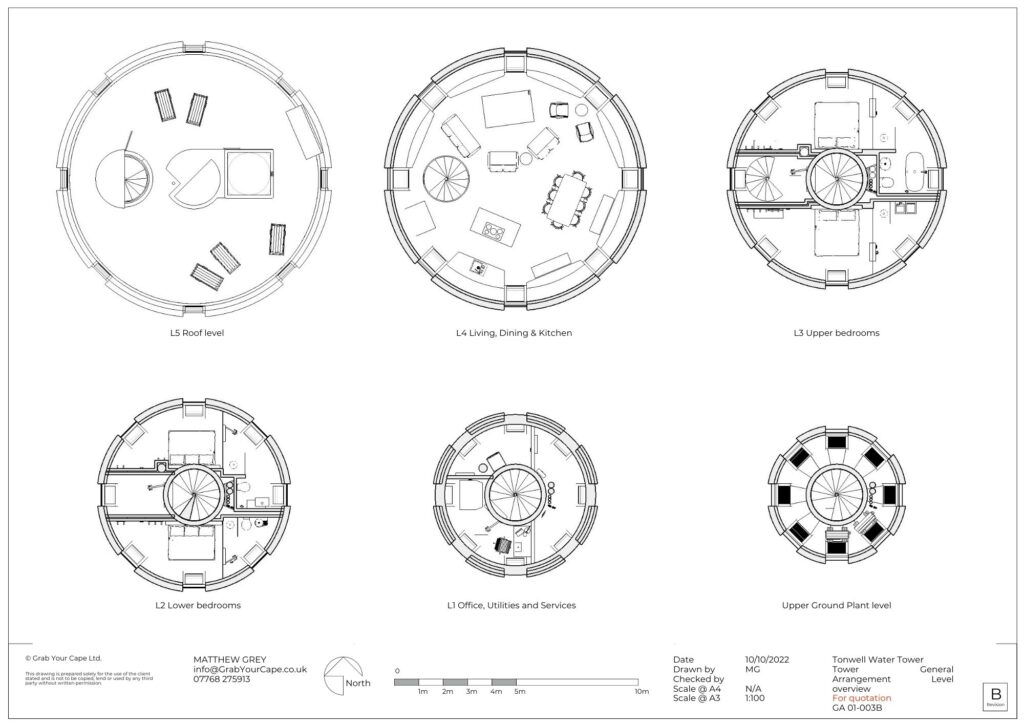
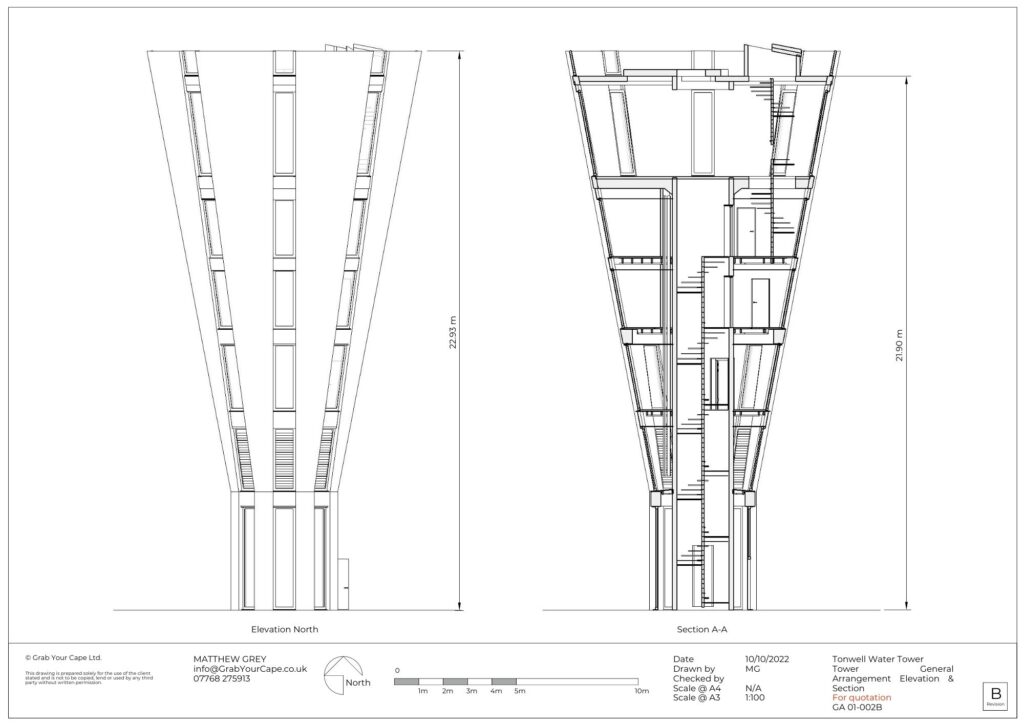
The Tonwell Tower Creation, From SketchUp to LayOut to Completion

2022 Winners Of 100 Out of This World Ideas.

Tonwell Tower is a 75ft tall, Grade 2 Protected water tower set in the countryside of Hertfordshire, England, with panoramic views of over 20 miles. 

Designed by Edmond Percy of Scherrer & Hicks Architects and constructed in 1964, it is a rare example of futuristic Brutalist utility architecture recognised by English Heritage, in exceptional condition and in an exceptional location. It is one of only two towers made to this design – soon to be made one of a kind… We are converting it to a 4 bed, 4 bath, 2000sqft, mid-century styled, holiday-let. 

We are Ali and Matt Grey. Two Industrial Designers who met at university. We have separate careers in both corporate employment and product and property development, we have a common career in keeping home and raising our two darling daughters, Daisy (13) and Poppy (10). As a family, we have converted our home from a derelict water pumping station, and have been hosting from it with AirBnB since 2014.

We’ve used SketchUp since the google days, starting with the creation of our home.

Architectural designs are finalised; structural, asbestos, access, environmental and fire surveys are all complete; all planning permissions and permits are in place; work has commenced and completion is due 1st August 2023. 

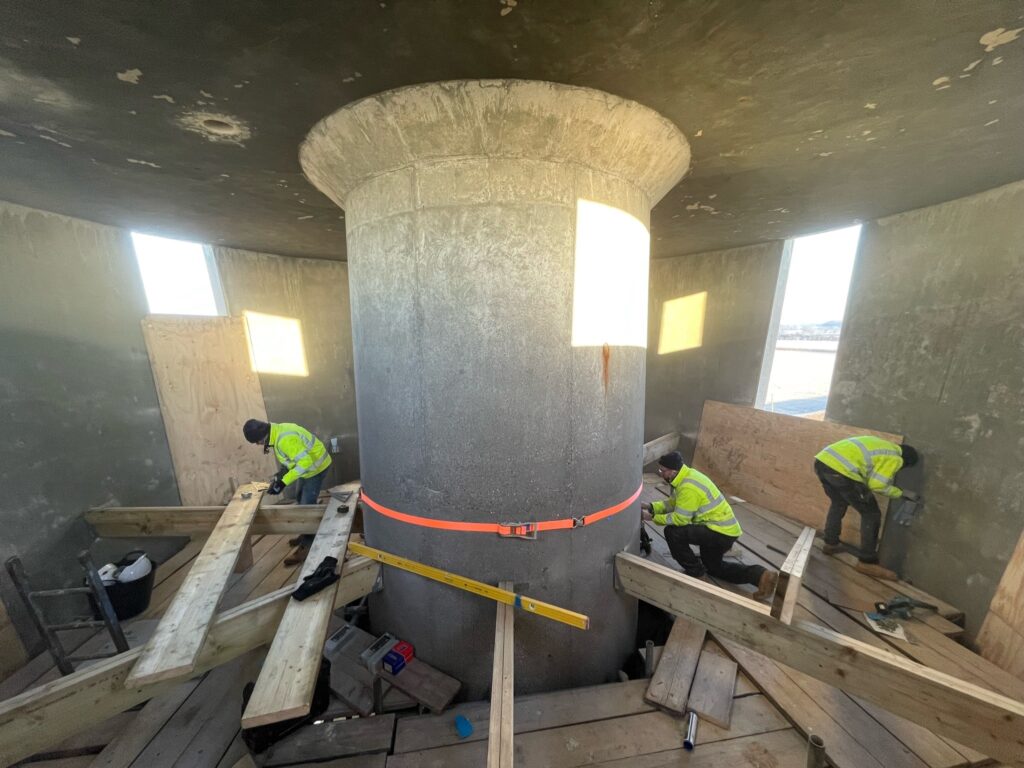
Both Planning Permission and Listed Building Consent were granted at the beginning of 2021 and building and fire regulation inspectors, and a structural engineer were contracted. The site was registered with the UK Health and Safety Executive and work started in the spring of 2022 – we cleared the site and built the site office with the girl’s help; Mick installed sewage and water; and Mark installed our mains electric. Our engineer, David, signed off on the structural changes and our first contractors, Toby and Jules, arrived to embark on the job of cutting the windows in the concrete tank. 

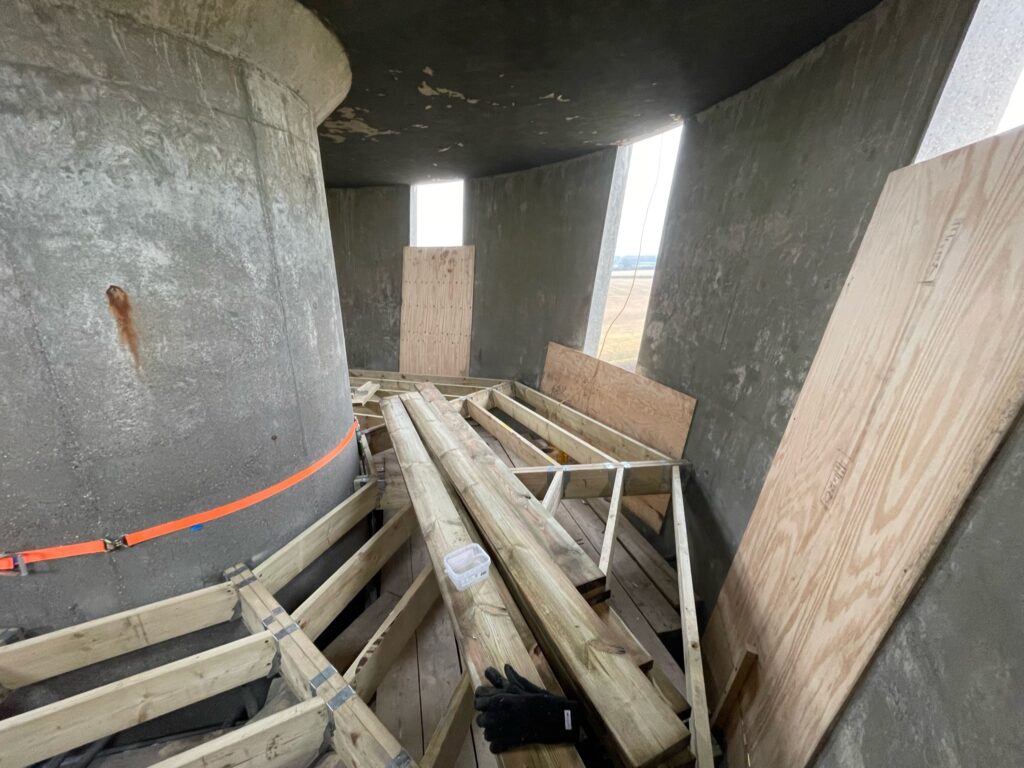
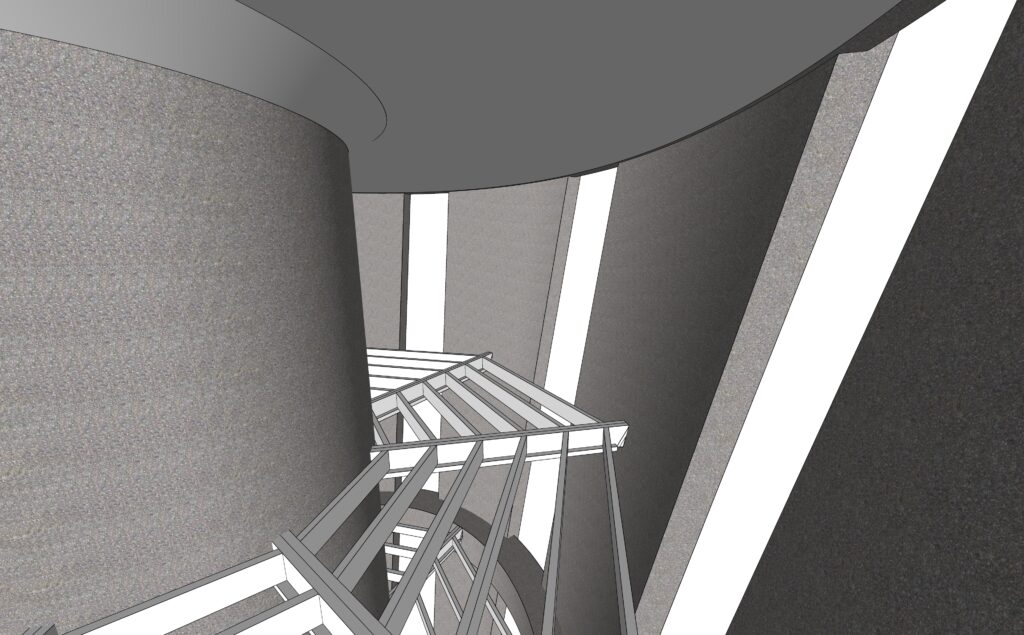
Shortly afterwards, two old associates, Bob Gilpin scaffolded the tower, and Danny Paris installed the suspended floors; contract abseilers Kay and Dario removed some difficult pipework; then Jules and Toby returned to cut doorways into the central shaft and access holes in the floor and ceiling of the tank. Currently, Danny and his team are back and are installing acoustic stud walls and our new plumber Aron, and Tom the electrician, are doing their first fix. Work is progressing at a pace. 

I, Matt, have done all of the design and specification work in Sketchup and Layout. I have been using it since around 2007 and have used if for multiple projects, in multiple industries at multiple scales. It’s fantastic and has served me very well.

The tower is set to open in August 2023 via Air BnB to the public.

For me, SketchUp was a breath of fresh air from the tedium of other CAD software’s, the ease of use while still producing incredible results.

For Tonwell Tower I used one model to create the entire piece, I was then able to pull out layers and the finer details to work on more closely. Due to the tower being a large cylinder, as you can imagine, it could and at times has been a 3D modelling nightmare.

The most complex part of the design process was as we moved out to 3d printing for the spiral staircases, this meant we needed to start experimenting on how we were able to do this.

We use LayOut to convey the measurements and overall designs to the construction team to ensure we are all working towards the same vision.

I used a few plug-ins within SketchUp to create the bespoke design and vision we wished to create. One of my personal favourites was where I could use a folded-out net to create a flat aluminum part which was pretty cool.

I also used one for spiral staircases and handrails and finally one that stops every layer appearing on every scene. Apart from this I don’t use anything else other than the SketchUp features.

My next steps would be to learn how to render to I could create a photo-realistic version of the Tower prior to its opening in August 2023 to the general public.

Thanks, Matt, for the great insight into your incredible project from 2022, we are really looking forward to seeing it open to the public in 2023! Click below to follow them on Instagram!

Tips for Rendering in V-Ray

The V-Ray 3D rendering engine is so revolutionary, it won both an engineering Emmy and an Oscar for advancing the use of ray-traced rendering. It’s the go-to choice for the world’s finest architectural designers, CGI experts, landscape designers, VFX professionals, and many other creative artists.

At the same time, V-Ray is so beginner-friendly, you don’t need to be a 3D pro to take advantage of its features.

Using V-Ray with SketchUp makes it even easier to bring your designs to life since the two applications integrate seamlessly.

With that in mind, observing a few V-Ray render tips will help you get the most realistic results, streamline your workflow, and have fun while you’re at it.

Let’s get started!

V-Ray Rendering Tips

The top mistake among new V-Ray users is diving into 3D rendering without proper research or preparation.

With these V-Ray render tips, you can avoid making the same mistake and make sure you set yourself up for success:

1. Ensure more than adequate system resources

V-Ray 3D rendering is a resource-intensive program – this means it requires a powerful processor and a good amount of RAM to get the job done.

As an example, here are some of the minimum system requirements for installing V-Ray for SketchUp:

  • Minimum of 2GB hard disk space
  • Minimum of 8GB RAM
  • IPv4 TCP/IP
  • For GPU support, NVIDIA card(s) such as Volta- and Turing-based units with the latest video driver
  • Windows 8.1 for the operating system
  • And more

Anything below these specs won’t cut it. If you don’t have enough RAM or even a good graphics card, your renderings will take too long to process, or the quality will be too low.

On top of that, it’s also a good idea to exceed the minimum system requirements so that you can render faster and with higher quality.

For example, 2GB of hard disk space will allow you to run V-Ray for SketchUp, but with 12GB, you can easily download additional content without compromising the performance of your system.

Also, if you’re using a laptop, ensure it has an external power source, as V-Ray’s rendering process can be very energy-intensive. If you’re using a desktop, be sure to sync up the power supply with your graphics card.

2. Use GPU rendering

V-Ray is designed to use either the V-Ray GPU or the V-Ray rendering engine.

GPU rendering is faster and more efficient because it lets V-Ray use your system’s GPU cards to execute the ray-tracing calculations instead of the slower CPU.

To use GPU rendering in V-Ray, you will need to have a supported GPU and enable it in the V-Ray settings.

3. Make the model render-ready

Another overlooked V-Ray rendering tip is ensuring that the initial 3D model is ready to render.

Sure, you can skip this and go straight to rendering, but expect poor results and lengthy rendering times.

Instead, prepare your model by checking that it’s correctly textured, lit, and has all the necessary materials set up.

This means that all relevant objects should have the appropriate materials and textures applied, and that all surface shaders, displacement maps, and other materials have been established properly in SketchUp.

4. Clean up your model design

A big part of preparing your 3D model is cleaning up the design as well as you can.

Any unnecessary detail will bog down the rendering process and use up valuable time and resources.

For instance, look for stray lines that don’t serve any purpose. You can usually find these in the model’s outer faces, hidden edges, and other places.

Aside from that, check that all irrelevant components are removed from the scene. As an example, let’s say you’re rendering a living room. In this case, unused components can be things like a bedroom door, non-essential furniture, and other elements that don’t belong in the scene.

When you’re creating your model, we also recommend separating components into layers and properly labelling each layer. This will help you keep your model organised and make it easier to find any component you may want to adjust. Additionally, create layers for your materials and textures and make sure that each material has its own unique ID.

5. Properly orient faces

A render-ready SketchUp 3D model should observe the proper orientation of faces.

Faces in SketchUp have a front and backside. As a default, the material shows the back as grey and the front as white.

V-Ray and other software may render back faces invisible, which will result in inaccurate renderings and artefacts.

To prevent this, check that faces face inward and that all the normals of the faces point in the same direction. This will help create a cleaner render, as V-Ray will not have to work as hard to render the scene. On top of that, it also helps to remove any hidden faces or objects, as these can cause problems with rendering. Utilising the “Check Intersection” tool can help to quickly identify and fix any issues caused by incorrectly oriented faces.

6. Leverage V-Ray materials

You can use SketchUp materials to render in V-Ray, but if you want the best results, use V-Ray materials instead.

Materials in V-ray allow you to manipulate attributes like the glossiness of the surface, the reflection of light, and the opaqueness of the material.

Additionally, the V-Ray material library comes with pre-loaded materials such as wood, metal, glass, and more. Still, you can find even more materials for V-Ray online in the form of downloadable content from various websites, so take time to explore.

7. Optimise cameras and lighting

In SketchUp, the default settings for 3D models are one camera and one light.

By comparison, V-Ray offers a wider selection of lighting styles and types, along with multiple cameras. Take advantage of these tools to better emulate how the lighting behaves in the real world, including sunlight.

8. Make use of render-ready assets

To save even more rendering time, consider using render-ready assets in your 3D model.

You don’t need to create everything from scratch, nor do you need to clean up these components since they are already prepared for rendering.

Render-ready assets can include pre-made 3D trees, cars, animals, people, grass, water, and other common elements. With these assets, you can create more complex 3D scenes much faster while saving resources.

9. Optimise materials and colours

The colours you use in your 3D model can also affect the speed and efficiency of rendering in V-Ray. That’s because some colours are simply more demanding for rendering than others.

For example, off-white is easier to render than white because of the less intense colour. Similarly, diffuse materials are easier to render than glossy ones.

So if you’re looking for ways to reduce your rendering time, take a look at the materials and colours in your 3D model and adjust them accordingly.

10. Optimise lighting intensity

Like your colour choices, the intensity of lighting in your 3D model can also affect the rendering process.

Naturally, the brighter the lighting design, the more time and resources it will require to render it. So to optimise your lighting, cut down on the brightness as much as you can without sacrificing visibility and atmosphere.

Aside from that, be sure to use V-Ray’s lighting parameters like exposure, white balance, and light intensity to your advantage. This will help you achieve the best possible lighting while minimising the amount of time it takes to render.

11. Reduce hard edges

SketchUp 3D models use hard edges by default. However, rendering hard edges can lead to a jagged and artificial look, so you may want to smooth them out.

To do this, you can use either a chamfer modifier or a VrayEdgeTex Map to modify the edges. The Chamfer modifier lets you add edges to specific parts of your design, while the VrayEdgeTex Map allows you to customise the edge type, width, and opacity.

12. Add some noise

In terms of 3D modelling, “noise” refers to the variation needed to make a scene look as natural as possible. What noise does is that it helps to break up the monotony of a flat and uniform surface, adding depth and texture.

One way to do this is by using a Quadify Mesh with a noise modifier. You can control the level of detail and the strength of the effect, so you can fine-tune your scene to make it look more realistic.

Now to get rendering

Applying these V-Ray render tips will help you avoid common mistakes that can get in the way of creating beautiful and lifelike 3D scenes out of your SketchUp models.

Practising them consistently will also help you develop a strong foundation for working with the power of V-Ray and using its features to the fullest.

For instance, getting into the habit of cleaning up your 3D models, optimising materials and colours, plus strategically using render-ready assets can help you save time and resources when it comes to rendering with V-Ray.

Now it’s time to put these V-Ray render tips to the test!

Download and install V-Ray for SketchUp and start rendering. Don’t have SketchUp yet? We’re offering a FREE 7-day trial of SketchUp Pro to get you started. Good luck!

Sustainable Landscape Design with SketchUp

The fight against climate change is the biggest battle the human race has ever faced, and fighting it touches every part of our lives, in every way. That’s why sustainable landscape design principles are coming to the fore, something every professional and amateur garden designer is taking into account. In our world, green sustainable landscape architecture means everything, a proven way to reduce CO2 emissions, cut down the miles the tools, equipment and materials travel, choose the least-damaging materials and products, and generally create a garden with the smallest possible environmental impact. If you’re busy researching sustainable landscape design, this article is for you. By the end you’ll know what sustainable landscaping is, the considerations and principles behind it, and how SketchUp will help you achieve it. 

What is Sustainable Landscaping?

So what is sustainable landscaping? The term green sustainable landscape architecture describes landscaping that is sympathetic to the surrounding environment in every way, and involving naturally available resources. The idea is that a sustainable human-made landscape will exist in complete harmony with the surrounding ecosystem, moving to the rhythms of the wider natural environment without causing harm or disruption to nature. 

What is sustainable landscape design? It’s much the same thing. Sustainable landscaping means focusing on both the input and output of a human-made landscape, finding ways to minimise both. It’s about living well now without compromising the future, about putting the environment first, and importantly, about thinking local, using techniques that are not only sustainable but environmentally responsible and, ideally, even regenerative.

The smaller the impact on the wider environment and nature your design has, the better. The less impact on the future, the better. If you can design a garden that enhances what was already there, doesn’t cause any damage during the creation process and does a good job of nurturing the environment into the future, you’re onto a winner. 

Next, let’s take a look at exactly what all this involves in context.

Sustainable Landscaping Considerations and Principles

The main goals of sustainable landscape design are to conserve water and energy, reduce waste and decrease runoff. To achieve these goals in an ordinary residential garden you’ll need to adopt a specific mindset. It’ll mean treating water as a vital resource to be protected, valuing soil as an essential we can’t live without, preserving existing plants, and thinking carefully about how to conserve material resources. All this dovetails neatly into a few key principles that support sustainable landscaping. 

Principle #1: Treat Water as a Resource – The first of our sustainable landscape design principles concerns water. Too much water is one thing, too little is just as bad. We’ve all seen the horrific impact of recent droughts on countries like Australia and the USA, where November 2022 saw a frightening total of 43 US states experiencing ‘moderate drought’ or worse. The demand for water is already at an all time high and all too often precious rainwater is treated as waste, sent away into drains. Instead you can make wiser decisions thanks to a careful selection of plants and by designing with irrigation in mind. Depending where you live, flood prevention will be just as important. You’ll need to try and strike a realistic balance between water conservation and flood prevention.  

Principle #2: Value the Soil – Compacted soil in gardens causes problems because it makes hard work of drainage. The resulting run-off can cause flooding as well as pollution. Good soil helps more plants grow more healthily, supporting a more varied ecosystem. If you have patches of poor quality soil, they’ll be perfect for many wildflowers and native plants that don’t like a rich soil diet but thrive on soil with very few nutrients.   

Principle #3: Preserve Existing Plants – Too many people clear every plant out of a garden to design or redesign it, but that’s the opposite of sustainable landscape design. Because every plant matters, a sustainable approach is so much better. Assess the existing plants, keep native species, remove non-native planting if it’s causing issues, and design around new and mature trees instead of cutting them down. A tree is a thing of wonder, beautiful all year round, and an invaluable way to lock up CO2 out of harm’s way. 

Principle #4: Conserve Material Resources – The fourth of our sustainable landscape design principles is about materials. Many hard landscaping materials are very energy intensive, and the environmental impact is even worse if they’ve been transported a long way.  A sustainable approach means reusing and repurposing, recycling old stuff and insisting on local materials. Using local rock, for example, from a quarry nearby looks right in the context of the surrounding landscape as well as minimising the miles it has travelled.  

Using SketchUp for Sustainable Landscape Design

It’s great to know you can use SketchUp to support your personal and professional sustainability goals in sustainable landscape design. Here are some things to consider:


[h3] Keep existing plants and source locally

For both garden designs and redesign, it’s a good move to identify as many existing plants as possible to keep, and work them creatively into your garden design model. It’s good to source plants locally rather than buy from a long distance away, and be sensitive about which new plants to add to your scheme. 


[h3] Choose to move away from block paving to prevent flooding

Floods and water shortages are as bad as each other, so think about them both. It’s important to take rainwater runoff into account and manage it optimally. You might, for example, reject the idea of block paving because it prevents water run-off and can cause dramatic localised flooding to gardens, driveways and roads. Rainwater collection ponds don’t just give you water to keep plants alive and thriving, they also quickly become home to an extraordinary range of wildlife, which often arrives within days of a pond being filled. You might want to think about fitting a number of water storage butts fed from the gutters of the house, to help see the garden through times of drought. When you design optimal water drainage, routing and storage into your garden design, you cater for every rain-led eventuality that climate change brings. 


[h3] Source materials locally

Can you source local stone and aggregates? Is there a fencing company nearby? The more of the materials you can source nearby, the better. You’ll support the local economy as well as minimising the miles travelled. Materials like Indian sandstone are lovely but when you think how far they’ve been transported, at what expense to the environment, their appeal dims quite a lot! 


[h3]Sustainable outdoor lighting

There’s nothing quite so magical as outdoor lighting, and there are sustainable ways to achieve that, too. Make sure your garden lighting is low energy, solar powered garden lighting using cool, energy efficient LEDs rather than ordinary bulbs. Just make sure you don’t design bright lighting that stays on overnight, because it disturbs the circadian rhythms of the plants, birds, insects, mammals and other wildlife. Like us, to get a good night’s sleep, nature needs darkness. 


[h3]Design with wildlife in mind

Last but not least, design with wildlife in mind. A sustainable garden isn’t sustainable if it drives wild creatures away. Perhaps you could design a special area where ‘weeds’ can naturally grow. In a sustainable world there’s no such thing as a weed, every plant matters to the balance of the local environment, crucial for wildlife that feeds on it, breeds on it, and relies on it. Plant natives for birds, insects, butterflies, and all the members of the food chain that depend on them. Consciously create safe spaces and shelter for wild creatures. 


Add a host of excellent free tutorials and learning resources, a free version to play with and a full version called SketchUp Pro, and the programme offers everything you need to place sustainability at the heart of your outdoor design life. We hope you’re inspired by the sheer potential this popular garden design tool delivers for doing things the environmentally responsible way. Now you’re ready to go create your first green sustainable landscape architecture design, we wish you a great time using SketchUp to achieve something special.