


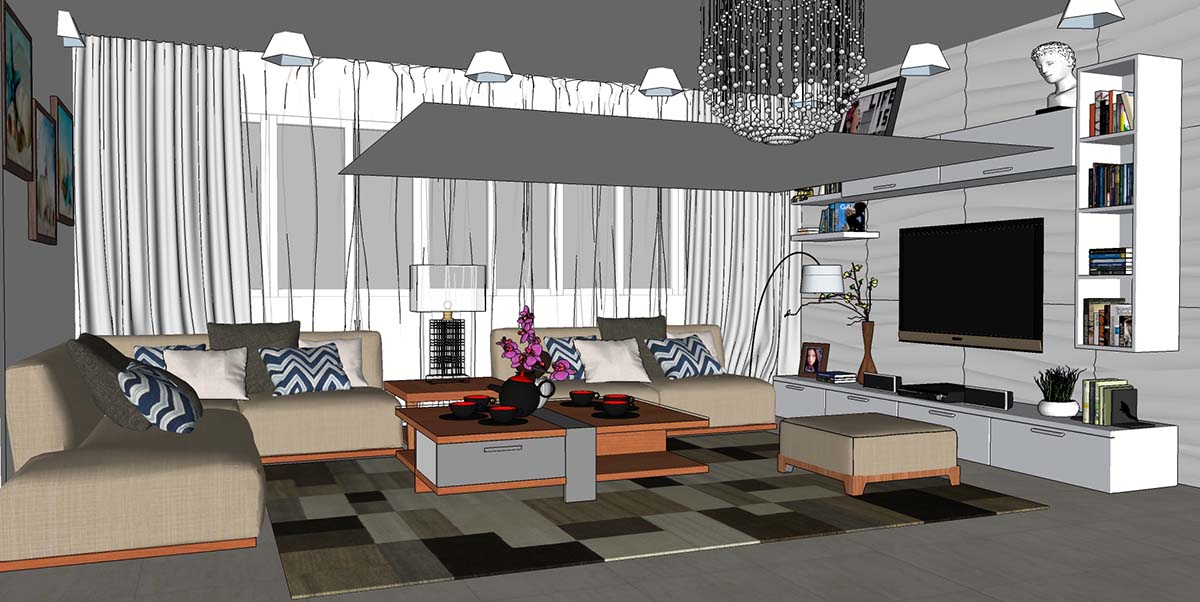
When you’re juggling client feedback, tight timelines, and multiple design options, your software needs to work with you — not slow you down. SketchUp is a favourite among interior designers for good reason: it’s fast, flexible, and visual. But are you getting the most out of it?
Here’s a practical SketchUp workflow that helps interior designers move from concept to client-ready visuals efficiently, while making full use of SketchUp’s built-in tools and extensions.
1. Start Smart with Templates & Tags
Before you even start modelling, take a moment to set up a custom template. Interior designers benefit hugely from pre-set:
-
Units (mm is usually best)
-
Scene styles
-
Default materials
-
Tag structures (walls, furniture, lighting, accessories, etc.)
Using Tags properly from the start makes it easier to toggle elements on and off, create clean scenes, and avoid the dreaded “sticky geometry” problem later.
💡 Top tip: Keep geometry untagged and apply tags to groups and components only.
2. Build with Groups & Components (Always!)
If you take one thing away from this blog, let it be this: group everything.
Walls, floors, cabinetry, lighting, furniture — all should be grouped or made into components. Components are especially powerful for items like:
-
Chairs
-
Light fittings
-
Joinery units
Edit one, update them all. Simple.
3. Use 3D Warehouse — But Be Selective
SketchUp’s 3D Warehouse is a goldmine for interior designers. From sofas and tables to sanitaryware and lighting, it can save hours of modelling time.
However, not all models are created equal. Look for:
-
Low polygon counts
-
Clean geometry
-
Real-world scale
Heavy models can slow down your file quickly — especially when you start adding textures and lighting.
4. Apply Materials Like a Pro
SketchUp’s Materials panel is ideal for testing finishes quickly. Create your own material library with:
-
Branded finishes
-
Supplier textures
-
Correctly scaled materials
Using Material Sampling (B) and Position Texture tools helps you fine-tune alignment on floors, tiles, and feature walls — something clients always notice.
5. Create Scenes for Client Presentations
Scenes are where SketchUp really shines for interior designers. Use them to:
-
Save camera views
-
Toggle tag visibility
-
Show different design options
-
Present lighting schemes or furniture layouts
Clients love being walked through a model visually, and scenes help keep everything clean and professional.
6. Add Depth with SketchUp Diffusion or Rendering
For early-stage visuals, SketchUp Diffusion (AI-powered visuals) can quickly turn your model into atmospheric imagery without needing a full render setup.
For more polished results, SketchUp works seamlessly with rendering tools like V-Ray, which Elmtec can support and supply.
Final Thought
SketchUp isn’t just a modelling tool — it’s a full design workflow for interior designers. With the right setup and a few best practices, it becomes a powerful way to design, communicate, and impress clients.
If you want help refining your SketchUp workflow, training your team, or exploring add-ons, Elmtec is here to help.